
How to use Customize Steps?

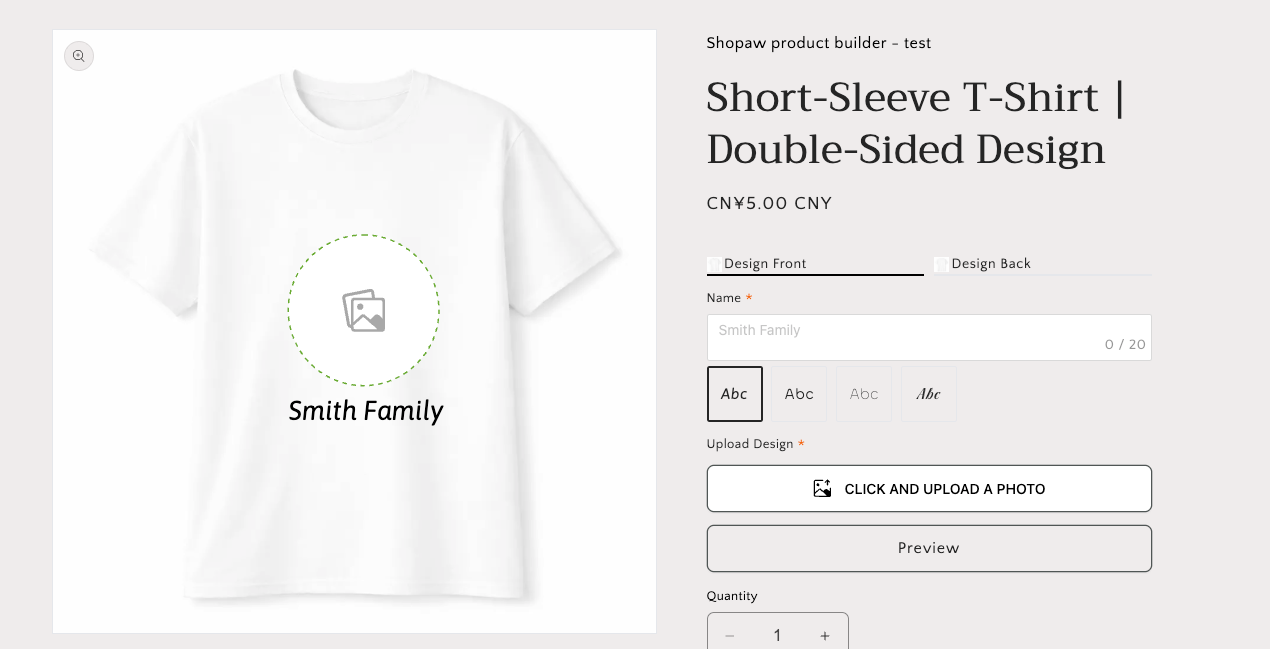
Online Product Demo:
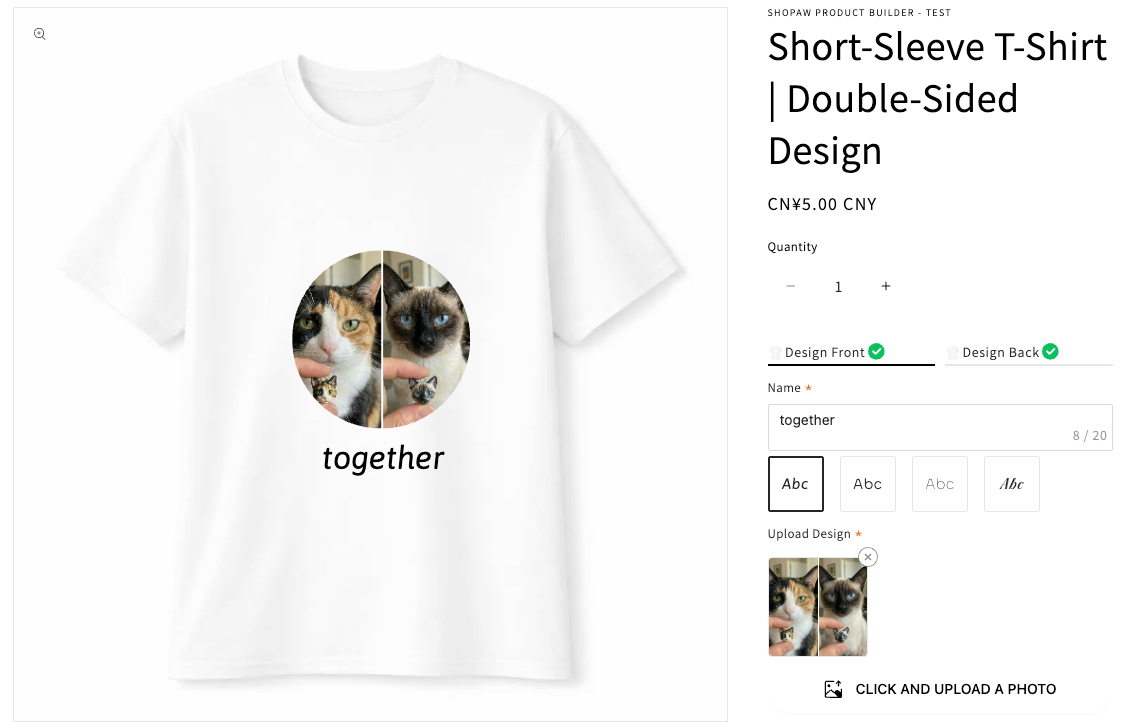
In this tutorial, we’ll use a custom T-shirt as an example to show how to set up designs for both the front and back of a product.
To complete the customization, you’ll need to configure each side separately:
- Front side: upload an image and add text
- Back side: upload an image and add text
By setting up the front and back step by step, customers can easily personalize every detail of the T-shirt and preview the final result with confidence.
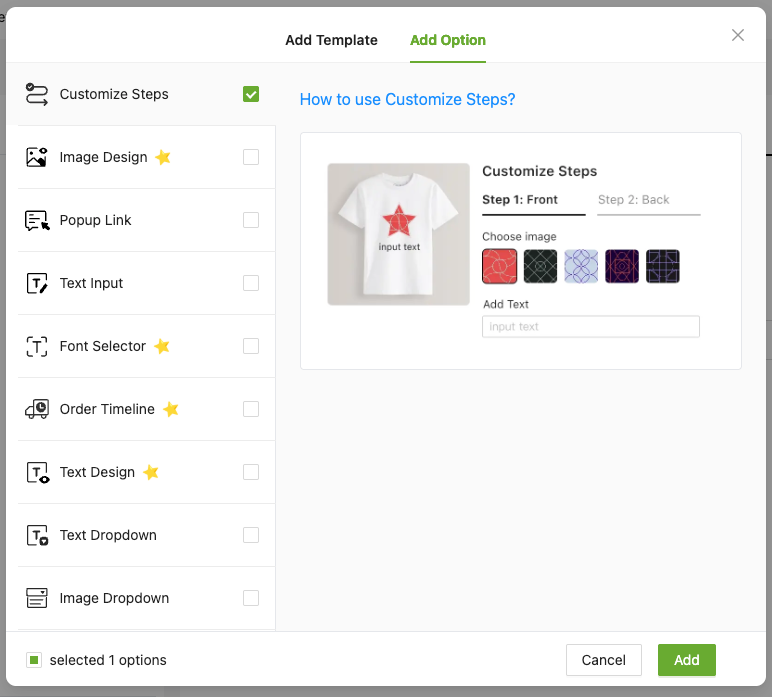
1、From Product > Option list, click “Add Option” button, choose “Customize Steps”
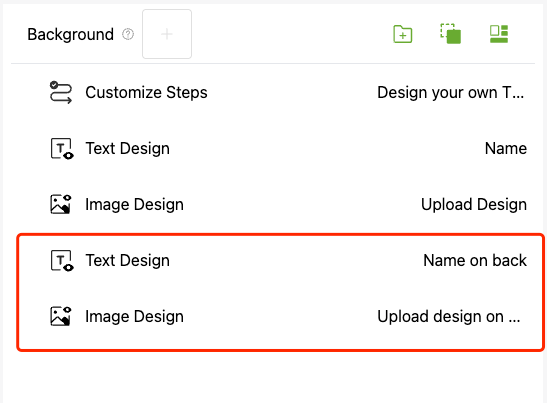
2、Add image and text options for the front side of the T-shirt.
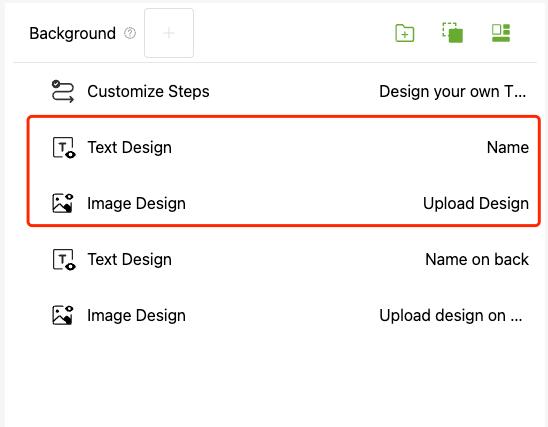
3、Add image and text options for the back side of the T-shirt.
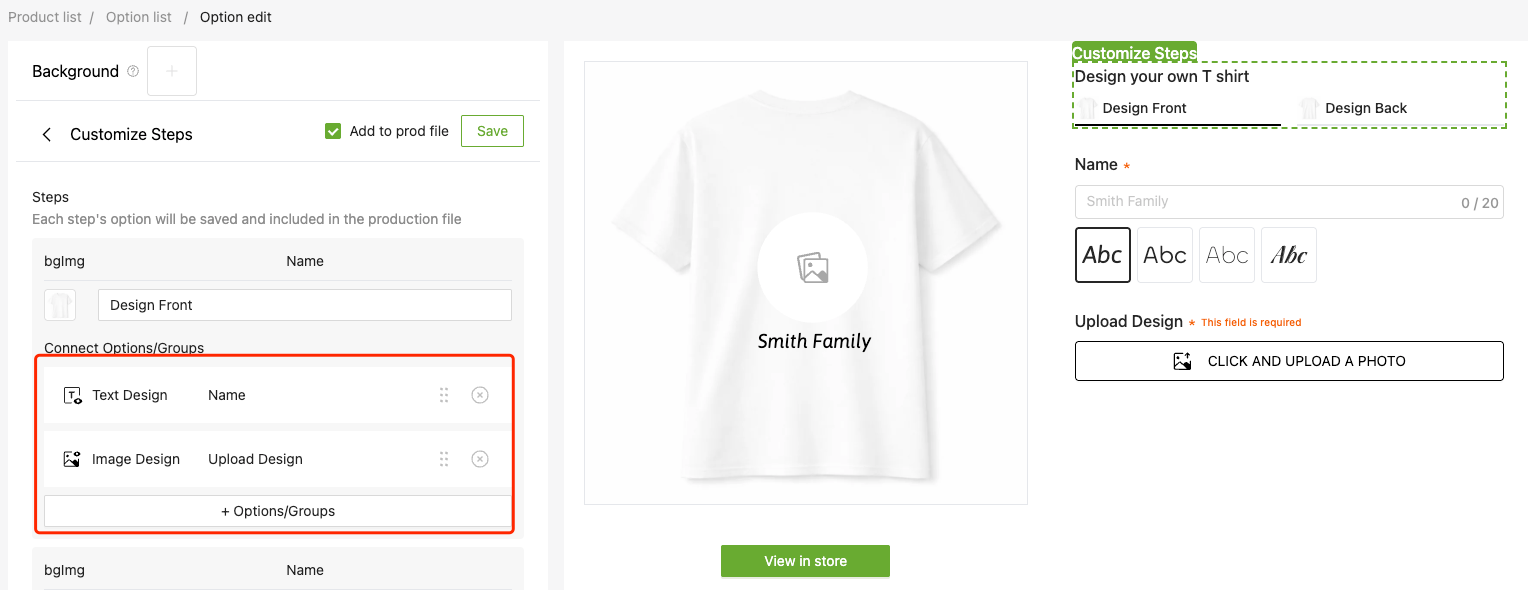
4.1、In Customize Steps, configure the first step by setting:
- The step title
- A background image (optional)
- The image and text options linked to the front side
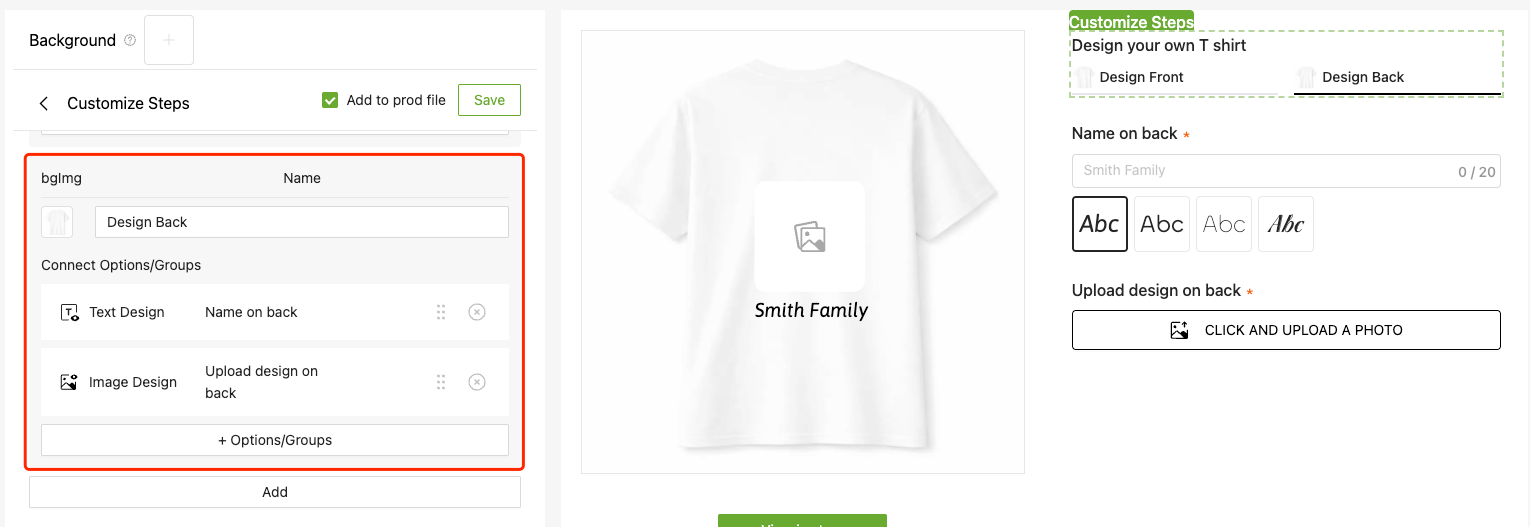
4.2、In Customize Steps, configure the second step by setting:
- The step title
- A background image (optional)
- The image and text options linked to the back side
5、Save your settings and preview the customization flow

If you encounter any issues during use, please to contact our team at shopaw@altgotech.com.